
Luckpik Ultimate Beginner's Guide: AI Image Generation & Content Creation
Executive Summary: What is Luckpik?
Luckpik is a comprehensive, browser-based AI assistant designed for modern digital creators. It eliminates the need for expensive hardware or complex software by centralizing high-performance AI models for both visual and textual tasks. Whether you are building an e-commerce brand or managing social media accounts, Luckpik serves as your virtual designer and copywriter.
Key Takeaways
- Integrated Creative Workflow: Luckpik combines AI image generation, smart photo editing, AI image expansion, and professional multilingual writing in one unified platform.
- No-Code & Beginner-Friendly: Designed for users without technical design or coding skills to produce professional-grade visuals and copy instantly.
- Zero Installation Required: Operates entirely in web browsers (Chrome, Edge, Safari) with no downloads needed.
- Credit-Based System: New users receive introductory free credits to explore and experience the platform's core AI features.
- Prompt Optimization: High-quality AI outputs depend on detailed text descriptions covering the subject, environment, lighting, and art style.
1. How to Create Stunning AI Images (Text-to-Image)
Creating high-quality images with Luckpik is straightforward. Follow these steps to generate your first AI image:
Step 1: Access the Luckpik Workspace
Visit the Luckpik website on your PC or tablet and log into your account to track your progress and manage credits. Navigate to the Workspace tab located in the top navigation bar.
Step 2: Define Your Vision with Prompts
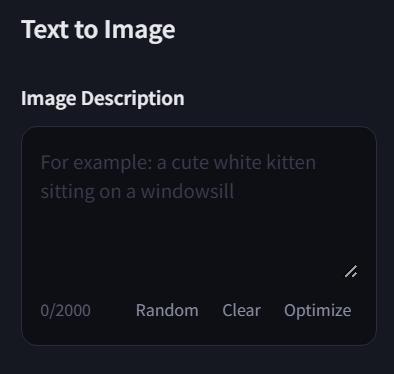
Select the Text-to-Image or Image-to-Image function from the left sidebar. In the prompt field, enter a detailed description of the image you wish to create.
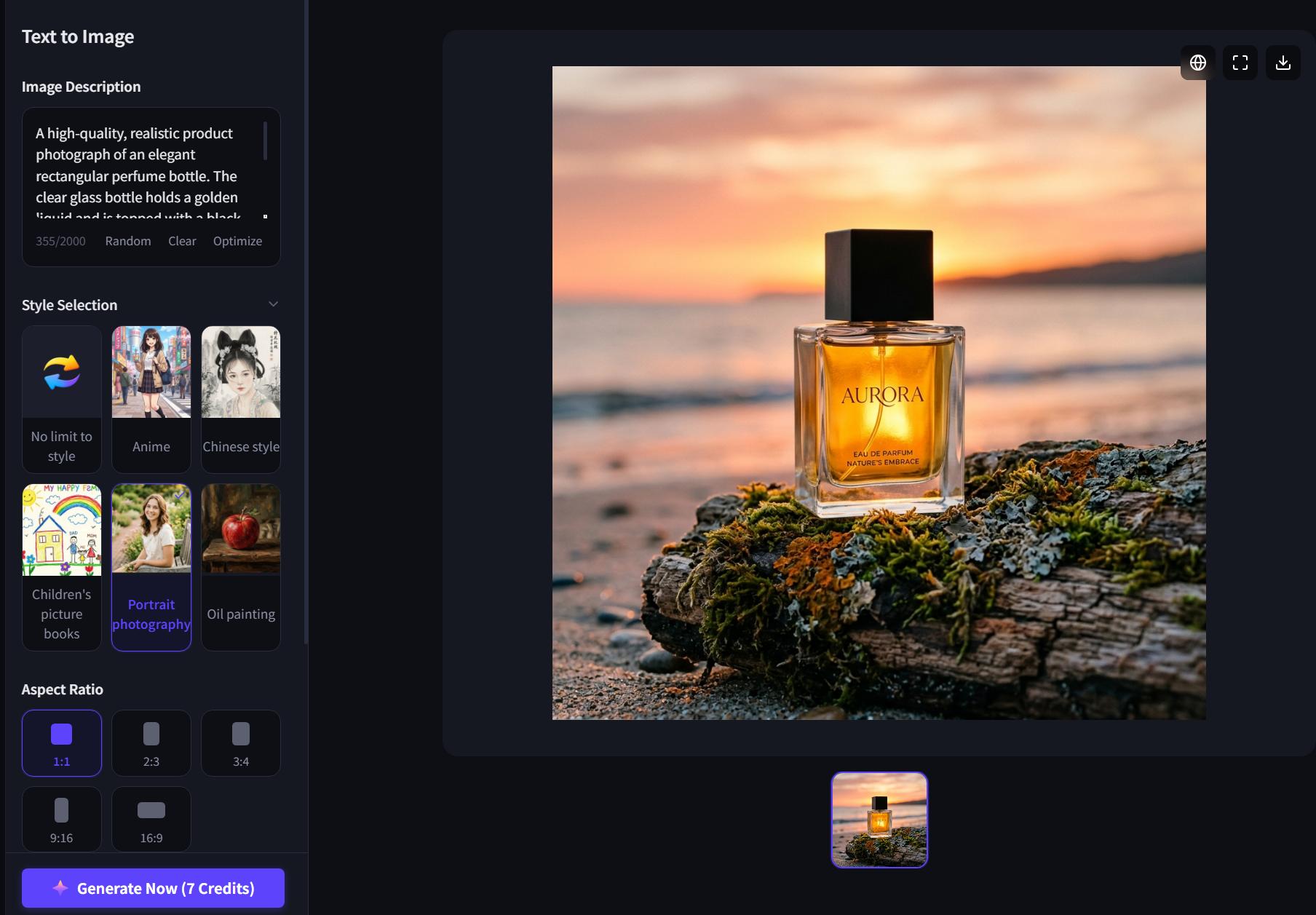
Prompting Pro-Tip: Instead of a generic prompt like "a bottle," use a descriptive prompt: "A high-quality, realistic product photo of a transparent perfume bottle with gold liquid, placed on driftwood with sunset lighting."
Step 3: Configure AI Parameters and Generate
Before clicking generate, optimize your technical settings:
- Select an Art Style: Choose from Any Style, Anime, Children's Book, Ancient Chinese, Portrait Photo, or Oil Painting.
- Aspect Ratio: Select from 1:1 (Square), 2:3, 3:4, 9:16 (Portrait), or 16:9 (Landscape).
- Quantity & Quality: Choose the number of image variations and your desired resolution.
Click Generate Now to view your AI-generated results within seconds.
2. Advanced AI Image Editing & Enhancement
Luckpik offers powerful post-processing tools to refine your AI-generated or uploaded images.
AI Eraser (Intelligent Object Removal)
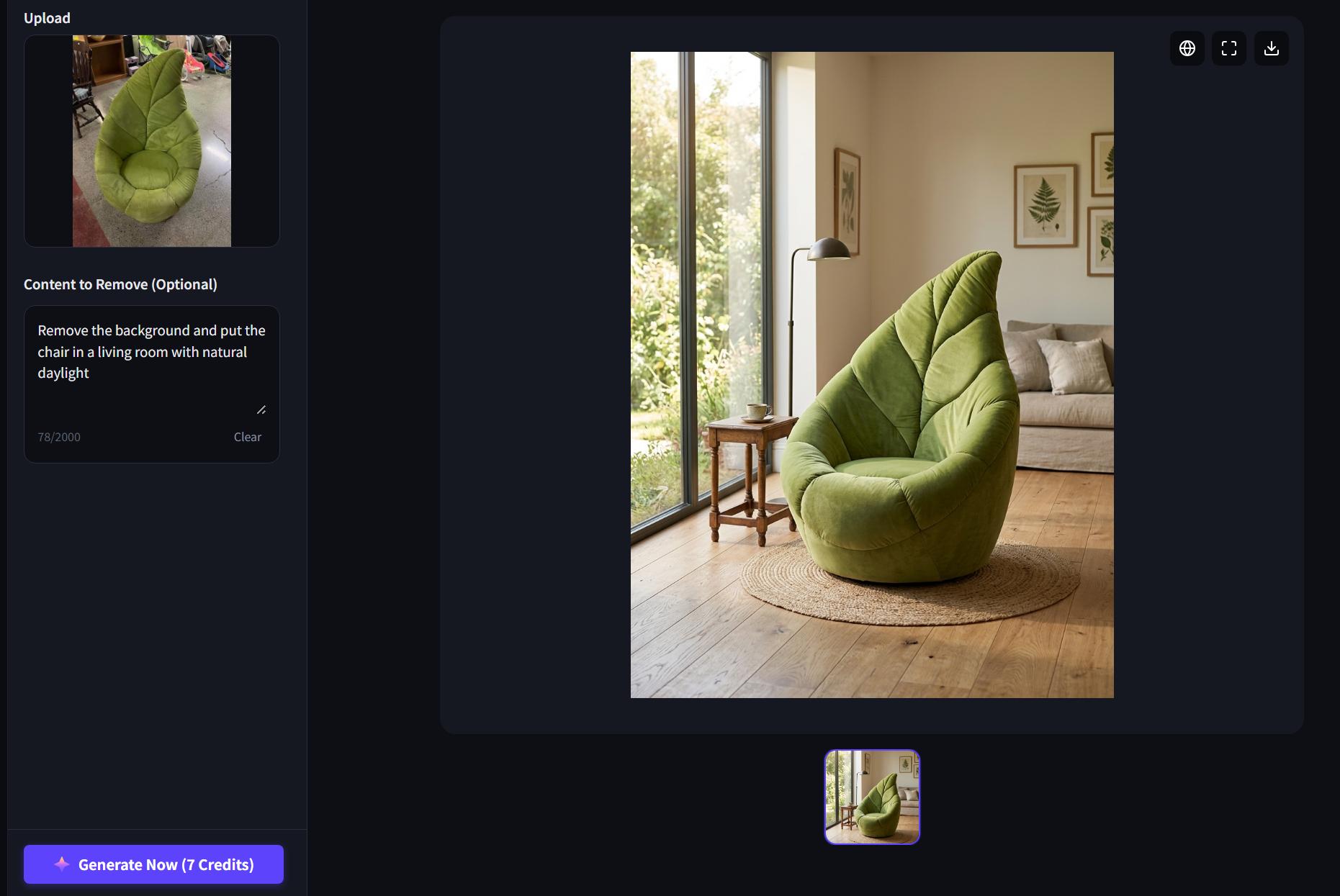
Use the AI Eraser tool to clean up your visuals. Upload your image, highlight or describe the elements you want to remove (such as watermarks, bystanders, or distracting background objects), and let the AI reconstruct the background seamlessly.
AI Image Expander (Outpainting)
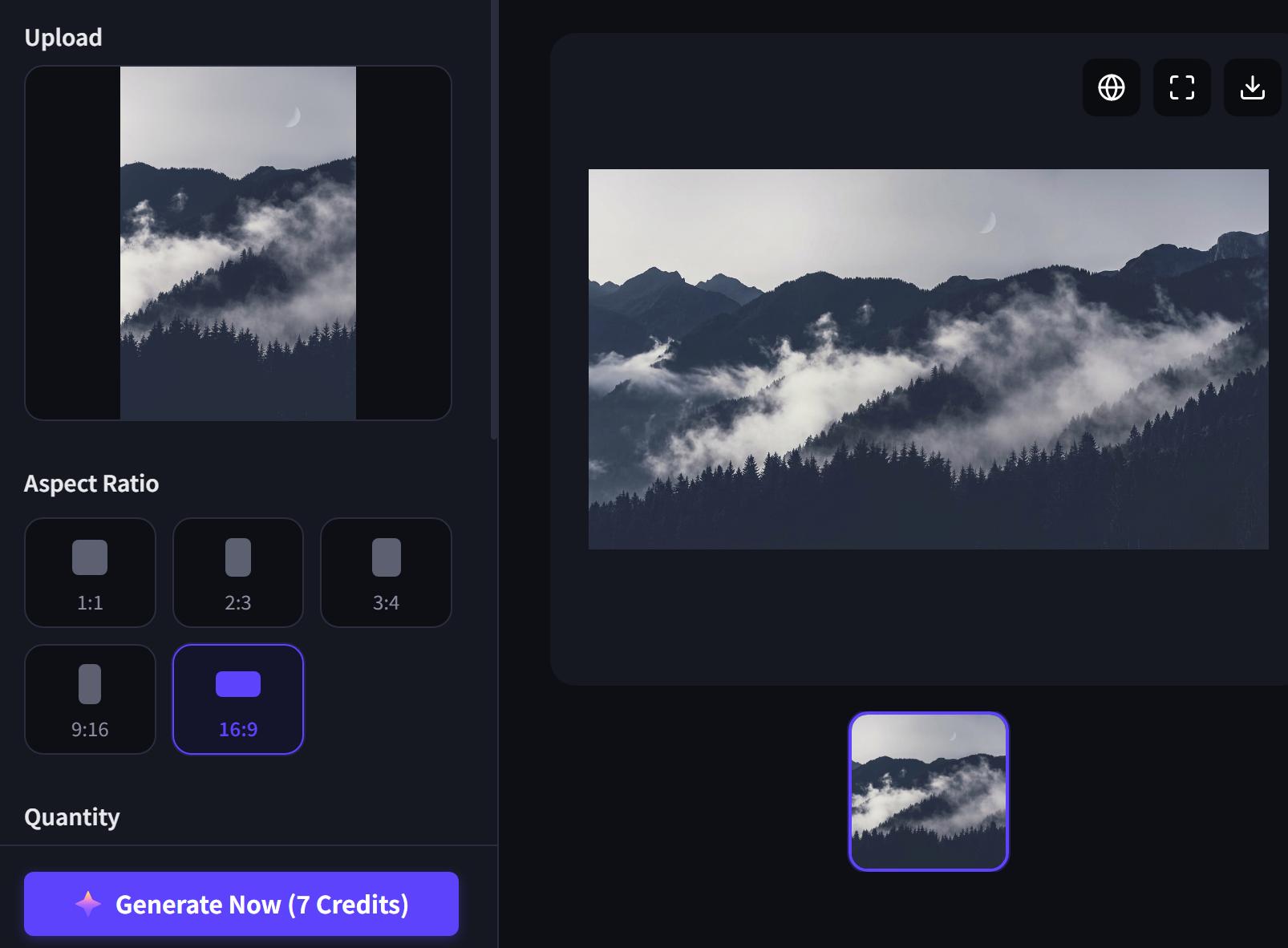
If you need to adapt an image for a website header or a large poster, use the AI Image Expander. This tool logically predicts and generates the scenery beyond the original image borders, creating a wider field of view without losing original quality.
Artistic Transformations (Image-to-Image)
Instantly apply professional styles like 2D Anime, Ancient Chinese, or Baroque to your existing photos. This feature is perfect for maintaining a consistent visual aesthetic across your brand's social media channels.
3. Master AI Content Creation & Multilingual Writing
Luckpik is not just for images; it features a powerful AI writing engine for global content creators.
Generate Multilingual Copy and Scripts
Navigate to the Multilingual Writing tool in the workspace. Luckpik supports English, Simplified Chinese, Japanese, Korean, Spanish, French, and more.
- Select Target Language: Choose your desired output language.
- Enter Writing Requirements: Provide context and instructions. For example: "Write a realistic 500-word story about a student in London navigating academic stress."
- Generate & Preview: Click generate to receive an instant draft, which can be copied or published to the Creative Inspiration gallery.
Generate Engaging Social Media Content
In the Content Creation section, you can generate platform-specific, compelling copy for Instagram, TikTok, X (Twitter), LinkedIn, Facebook, and Pinterest.
- Select Content & Copy Type: Define the format (e.g., Instagram Caption, LinkedIn Post) to help Luckpik structure the text perfectly.
- Enter Keywords: Describe the topic, product, or core message you want to post.
- Generate & Export: Review the generated AI social media post, complete with tailored emojis and hashtags.
4. Frequently Asked Questions (Troubleshooting & Best Practices)
To ensure the best experience on Luckpik, keep these best practices in mind:
Q: What should I do if the workspace page appears blank?
A: Ensure you are using the latest version of your web browser. Perform a hard refresh (Ctrl + R on Windows or Cmd + Shift + R on Mac) to clear the cache.
Q: How can I improve the accuracy of my generated images or text? A: If results are not as expected, make your prompts more precise. Add specific details about lighting, mood, tone, or style, and generate again.
Q: Where can I find my previously generated AI assets? A: All generated images and texts are safely stored in the My Works section of your account for easy downloading, editing, or comparison.
Q: Are there any data safety guidelines I should follow? A: Yes. For your privacy and security, never upload or enter sensitive personal information, such as ID card numbers, passwords, or bank details, into the AI prompt fields.
Ready to Start Creating?
You now have the fundamental knowledge to generate breathtaking AI images, edit photos like a pro, and produce high-quality multilingual text. Join the Creative Inspiration community gallery to explore what other creators are building, and start your first project in the Luckpik Workspace today!